
View Program Code
Follow the steps below to view the program codes:
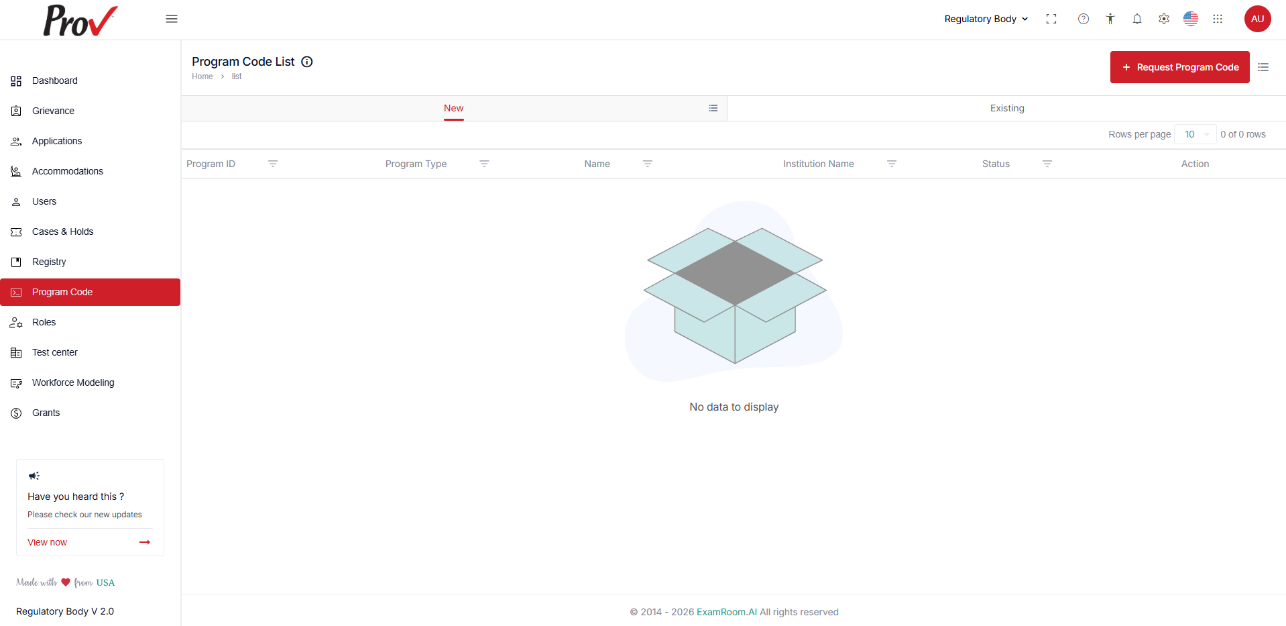
- Click the Left Navigation menu and select Program Code.
- On the Program Codes page, all program codes are categorized into two tables: New and Existing.
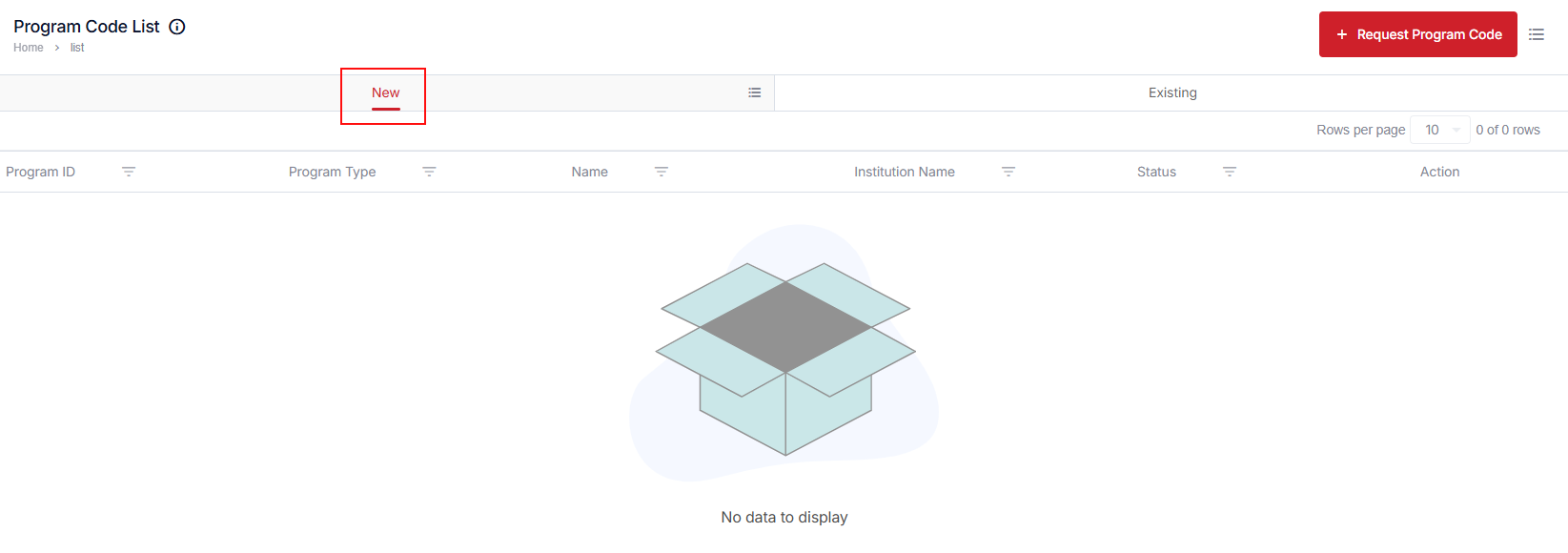
- The New tab displays requested program codes with Awaiting Approval or Denied status.
- The Existing tab includes program codes with Active, Inactive, and Closed statuses.
- To view existing program codes, navigate to the Existing tab on the Program Codes page.
- The following are the table items:
- Program ID: Displays the unique ID generated when a new program code is requested.
- Program Type: Displays the type of program that is requested.
- Name: Displays the name of the program.
- Program Code: Displays the unique program code once it is approved.
- Institution name: Displays the name of the Institution.
- Status: Displays the status of the role created.
- Action: This column allows you to View and Edit the program code application.
- Click the New tab on the Program Codes List page to view newly requested program codes.
Customize Display of Program Code
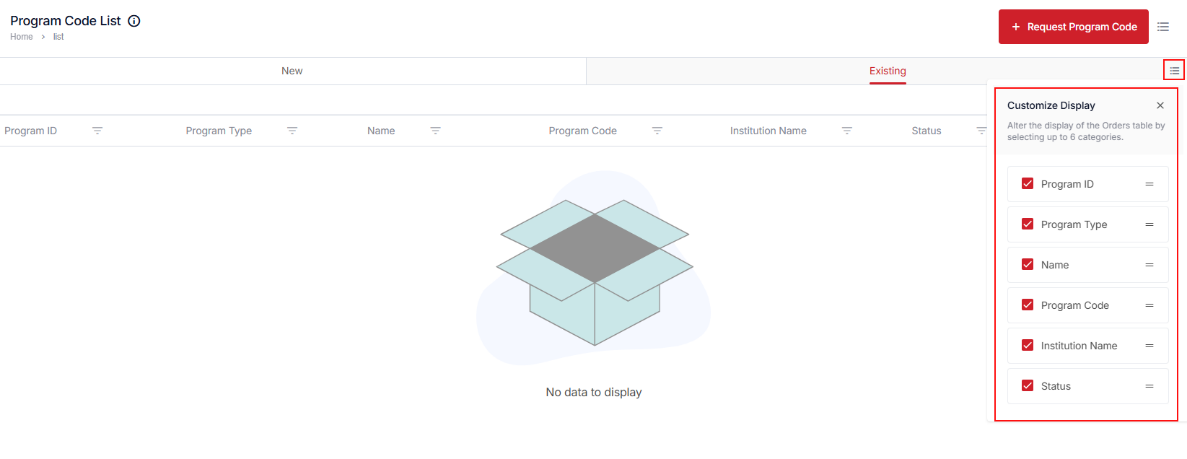
You can customize the table and arrange the columns as per your preference by following the steps below to customize the display of the table:
- Click Customization Display and select the required checkboxes to view the respective columns in the table.
- To arrange/rearrange the order of the columns, drag the Drag Icon provided next to each column label.
Search & Filter Slots
To find a program code from the list, you can utilize the available filter options.
Follow the steps below to filter the Program Code from the list:
- Search the Program code using the Filter options based on Program ID, Program Type, Program Code, Institution, Zip Code, and Status.
- To view all the programs in the list, you need to remove added filters.
- You can search based on any of the categories to find the intended program.
