License
The License module enables you to create and manage licenses associated with programs. You can then use these licenses in application configurations and certificate generation.
View and Manage Licenses
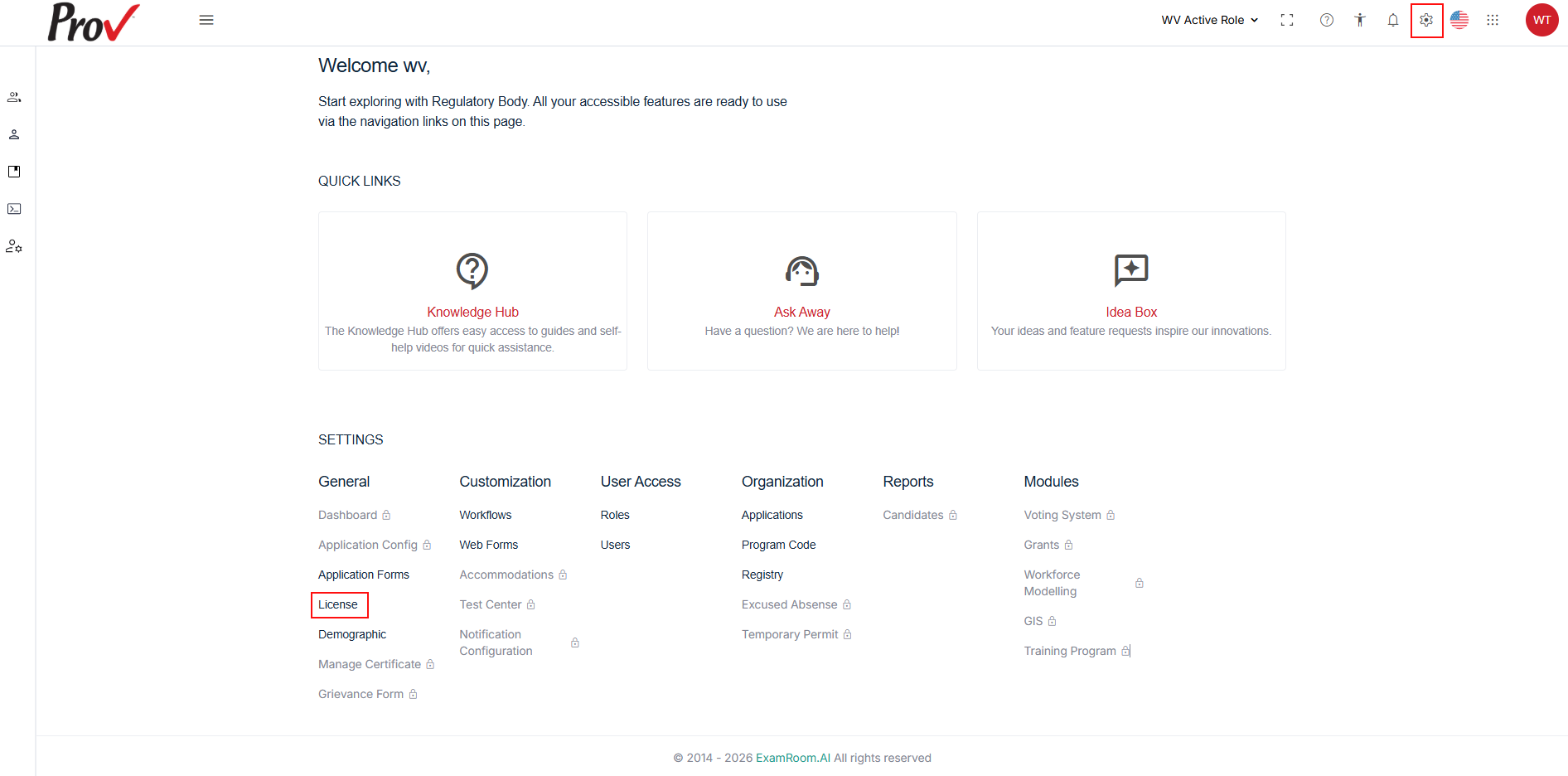
- Navigate to Settings; under General, select License.
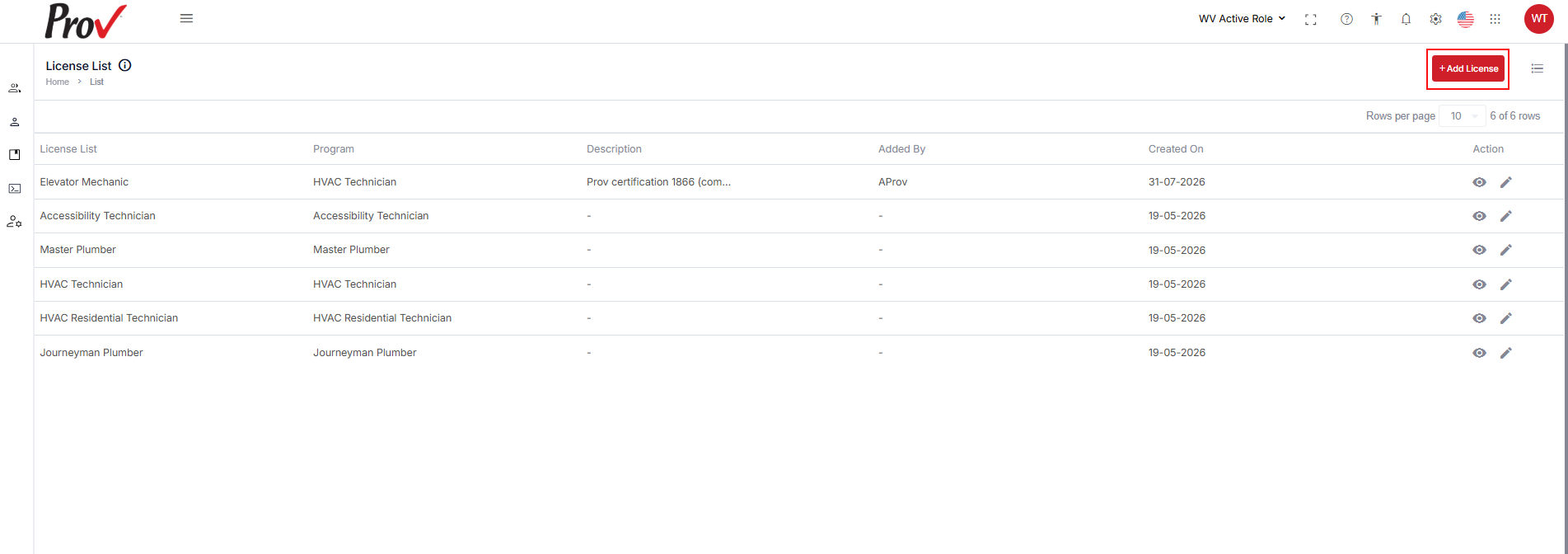
- The License List page appears with all configured license details.
- The licenses are listed in a table format with license details that include:
- License Name: Name for the license.
- Program: Name of the program associated with the license.
- Description: Description of the license.
- Added By: Name of the user who created the license.
- Created On: The license creation date is displayed.
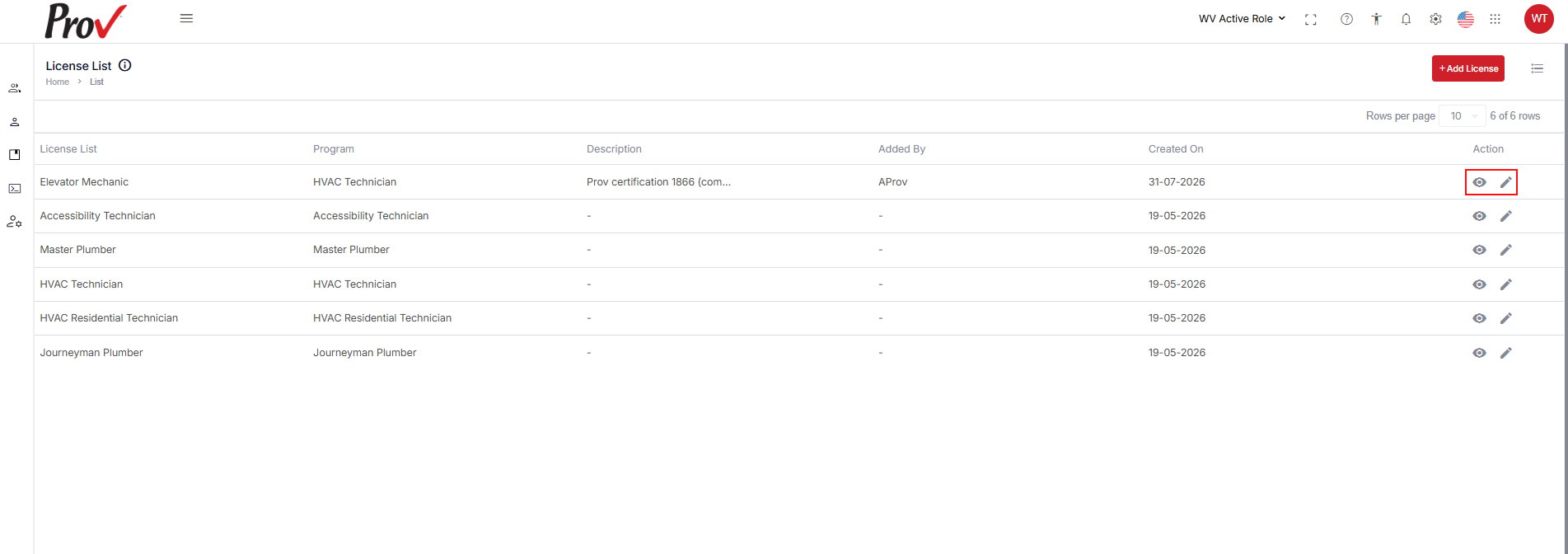
- Available Actions: The View and Edit icons are provided for you to view and modify the existing license.
Add License
Create a new license to associate with a program and make it available for application and renewal workflows.
- Navigate to Settings and select License under General.
- In the License list section, click the + Add License button at the top right of the page.
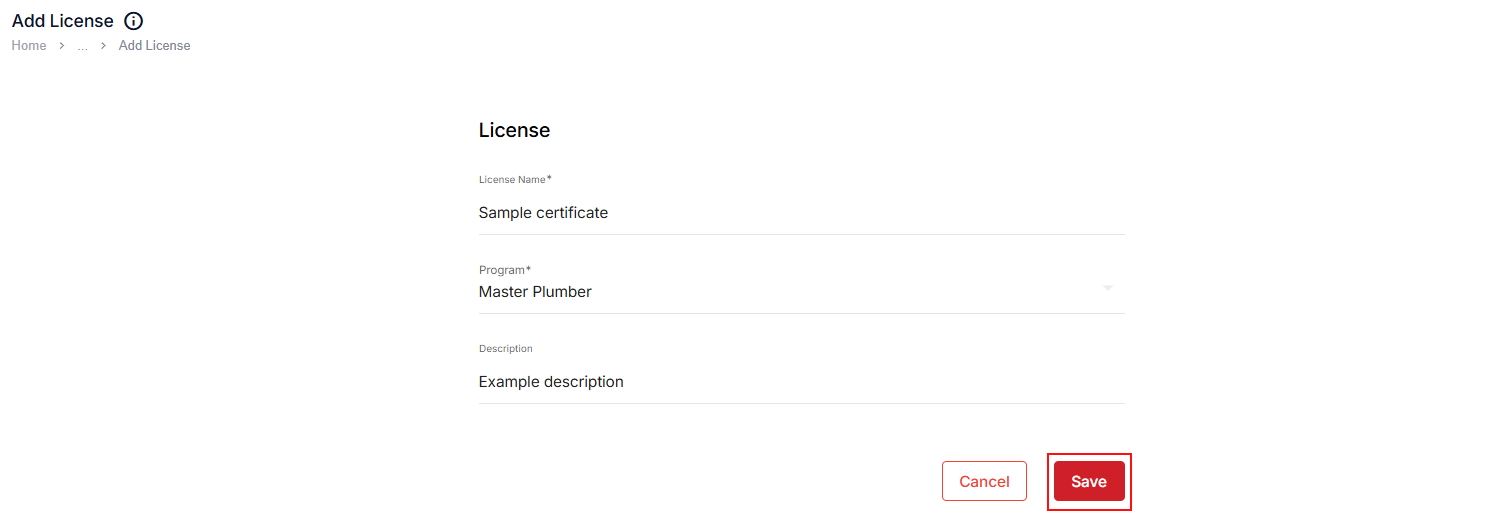
- In the License Name field, enter the name of the license you want to create.
- Select a program from the dropdown to associate with the license.
- Enter a brief description of the license. Click Save to save the license.
- Click Cancel to discard creating a new license.
- The newly created license name will appear in the respective fields for use in application configurations and the certificate generation process.