Users
The RB User section is designed to manage user profiles within the Regulatory Body (RB) platform. This section allows you to add, update, and deactivate user profiles, assign roles, and set permissions to ensure secure and efficient access to the system.
Perform the steps below to navigate to the User section:
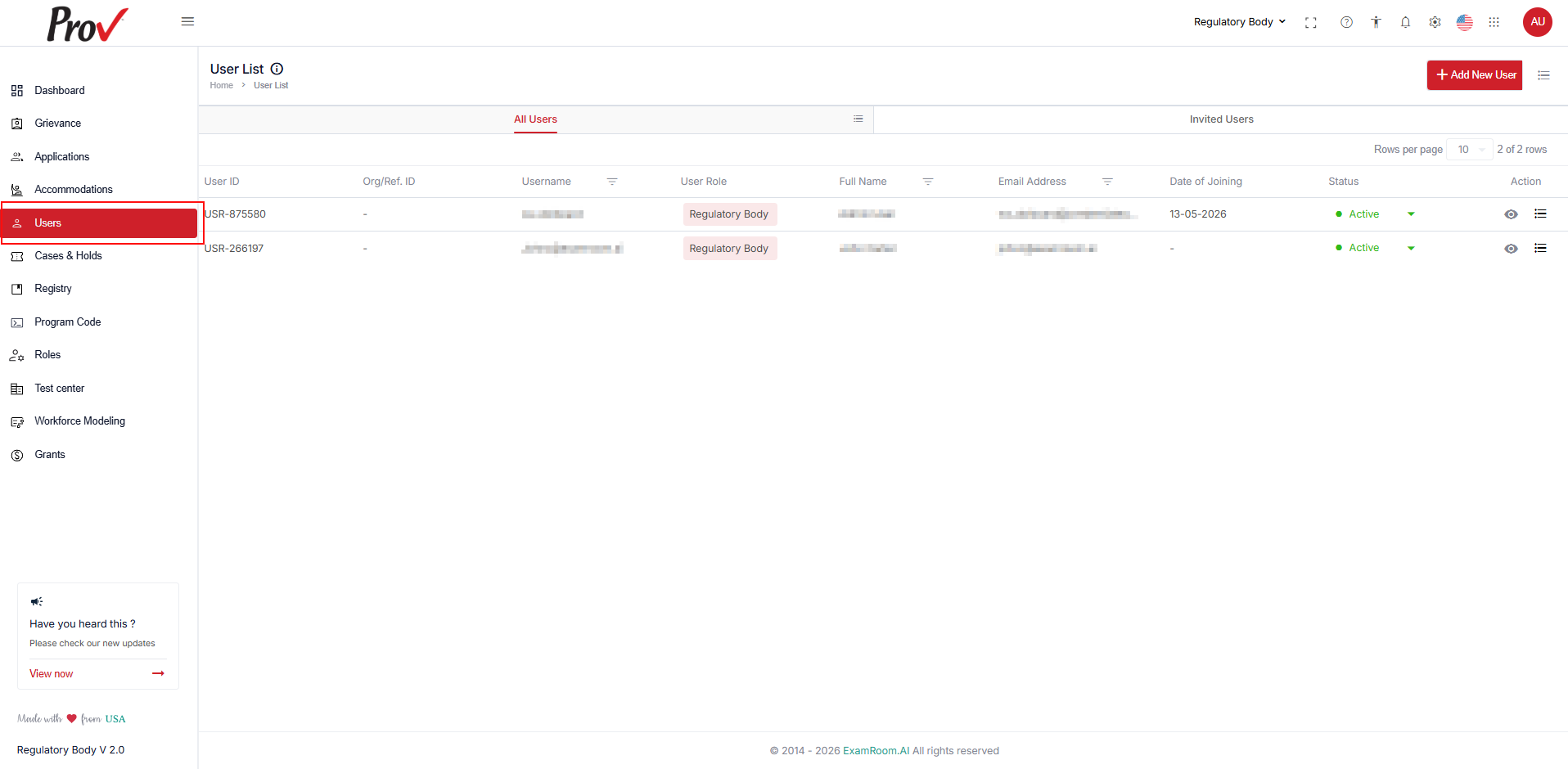
- Click the side menu and select the Users option from the list.
- The User List is displayed with All Users, Invited Users, and Bookmarks.
All Users
The All Users tab displays the list of existing users in the console.
The following are the table items:
- User ID: Displays the unique ID generated when a user is created.
- Org/Ref ID: Displays the organization or the reference ID.
- Username: Displays the username of the user created.
- User Role: Displays the role assigned to the user.
- Full Name: Displays the full name of the user.
- Email Address: Displays the email address of the user.
- Date of Joining: Displays the date of joining when the user joins for the first time, after creating and setting up the user's password at any given time.
- Status: Displays the status of the user
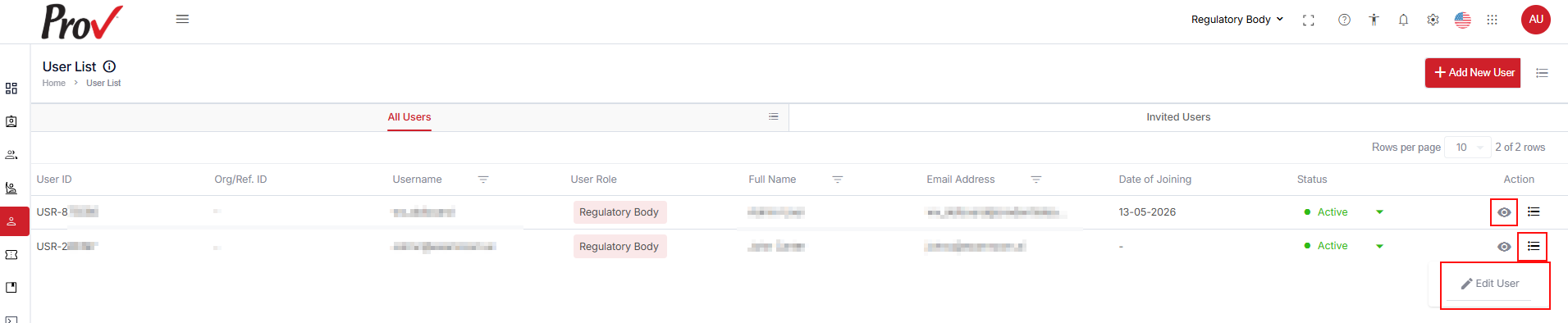
- Action: This column allows you to view and edit the user details.

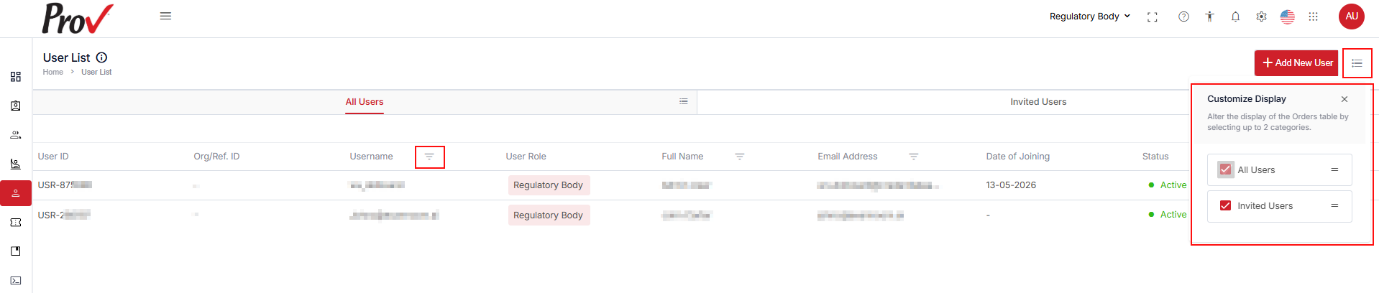
Use the options below to view the customized display of the table items:
- Click the Hamburger Menu at the right of the All-User page and select the required checkboxes to view the customized display of the table items.
- In the Username column, click Filter and enter the username to search for users in the table.
- Click the View icon to view the user’s details.
- In the Action column, click the Hamburger Menu to expand the Edit User and Bookmark options.
Invite Users